
Output an Inline SVG from WordPress’ Media Library using Advanced Custom Fields Icon Picker
SVGs have become a standard in modern web development, especially for UI elements like icons, logos, and illustrations. If you’re building anything even remotely design-conscious, you’re probably already reaching for SVGs by default. Inline SVGs are especially helpful for styling and interactivity on the front end.
Where things tend to get messy is in WordPress. Developers often hardcode SVGs, build custom icon systems, or rely on external libraries, while content editors are left out of the loop. That disconnect usually leads to extra dev work for simple content changes. Letting editors upload SVGs directly into the Media Library is an obvious fix—it keeps everything centralized and uses a workflow they already understand.
What is an Inline SVG?
An inline SVG is exactly what it sounds like: the raw markup is placed directly into your HTML instead of being loaded through an image tag. That small change makes a big difference. You can target paths with CSS, animate elements, change colors on hover, and fine-tune accessibility attributes.
There’s also a performance angle. Inline SVGs eliminate additional HTTP requests, which is especially useful when you’re dealing with lots of small icons. It’s not a massive gain on its own, but combined with everything else, it adds up.
Letting Editors Actually Control Icons
Since version 6.3, Advanced Custom Fields introduced the Icon Picker field which makes selecting icons inside WordPress feel native. Instead of building custom dropdowns or maintaining icon sets manually, you can just hand editors a field and let them choose from Dashicons, uploaded media, or even a URL. It replaces a lot of the one-off solutions many of us have written (and rewritten) over the years.
Before this, it wasn’t uncommon to build custom plugins or helper UIs just to manage icons. Those solutions worked, but they came with baggage—maintenance overhead, inconsistent implementations, and the occasional break during updates. The ACF Icon Picker removes all of that friction and gives you a standardized way to handle icons across a project.
The Problem with file_get_contents()
A common way to inline SVGs in WordPress has been using file_get_contents() to read the file and echo it out. It works—but it’s not ideal. Every time that code runs, you’re hitting the filesystem again. On a low-traffic site, that’s fine. On something larger, it becomes unnecessary overhead pretty quickly.
A better approach is to lean on WordPress itself. If you resolve the attachment ID and get the actual file path, you can use PHP’s include to output the SVG. With OPcache in play, that file gets cached at the opcode level, which means you’re not repeatedly reading it from disk in the same way. It’s a small shift, but it’s much more efficient.
Security: Don’t Skip This Part
SVGs aren’t inherently safe. Because they’re XML-based, they can contain scripts or event handlers if you’re not careful. That’s why sanitizing on upload is the right move. Instead of trying to clean SVGs every time you render them, you validate them once when they enter your system.
Plugins like SVG Support or Safe SVG handle this well. Once that’s in place, you can treat SVGs in your Media Library like any other trusted asset. It simplifies your rendering logic and removes a whole category of runtime concerns.
It is imperative that you include that for the method I am suggesting.
ACF Icon Picker Settings
Choosing what options you give your content editor is entirely up to you and will often vary based on project. For the sake of this example, we are doing two things:
- Setting up the field to use icons from the Media Library
- Returning an array for the Return Format
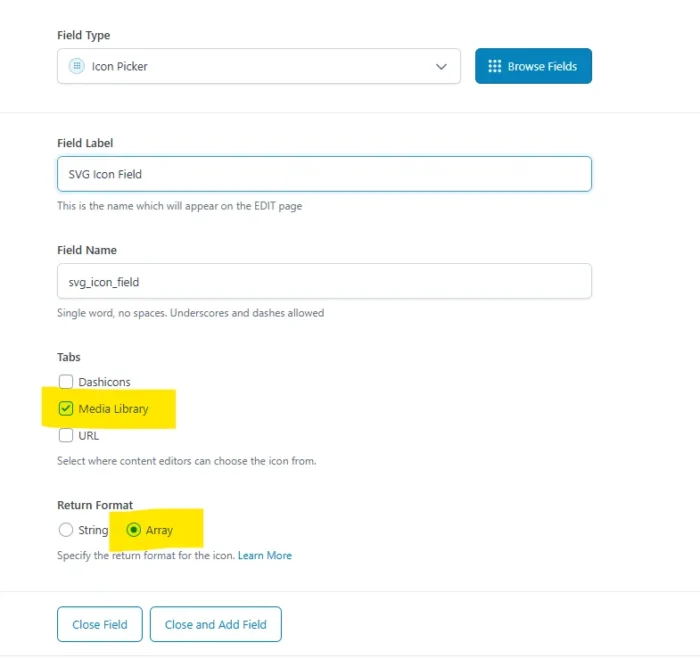
Our PHP Template Function
In order to safely call the inline SVG in our theme, block, whatever… we need to make a function that gets the Media Library field and returns raw HTML. Below is a simplified function to do exactly that with our ACF field:
function get_icon($icon) {
	if (empty($icon) || empty($icon['type'])) {
		return '';
	}
	$html = '';
	switch ($icon['type']) {
		case 'media_library':
			$value = $icon['value'];
			$size  = 'full';

			if (is_array($value) && !empty($value['ID'])) {
				$attachment_id = $value['ID'];
			} else {
				$attachment_id = $value;
			}

			if ($attachment_id) {
				$path = get_attached_file($attachment_id);
				if ($path && file_exists($path) && strtolower(pathinfo($path, PATHINFO_EXTENSION)) === 'svg') {
					ob_start();
					include $path;
					$html = ob_get_clean();
				} else {
					// Fallback to normal image
					$image_html = wp_get_attachment_image($attachment_id, $size);
					$html = wp_kses_post($image_html);
				}
			}

			break;
	}

	return $html;
}
You could easily build out this function to be more robust, but at its heart, the function is:
- Taking the
$iconACF field value and seeing what type it is. In this case,media_library - Getting the attachment file from the Media Library based on the ID
- Outputting the contents of that file and returning as HTML
Template Usage
Below is how we would utilize the field and render its contents:
$icon = get_field('svg_icon_field'); //UPDATE TO YOUR CUSTOM FIELD
if(!empty($icon)) {
	echo get_icon($icon);
}
And what you will get is the raw HTML of an inline SVG. Now you are free to style this with your CSS and perform any other front-end manipulations that an SVG within an image tag would simply not be able to do. And best of all, a content editor can upload any SVG of their choosing to that field.
Performance and Safety Considerations
Now you may be saying to yourself, “Randy, using get_attached_file() is just as taxing as file_get_contents().” And while you are still doing disk I/O, there are a few benefits to doing this the former way vs. the latter:
PHP can cache the compiled opcode of that file via OPcache. Even though it’s an SVG, PHP still processes it as a “script” and caches the result. That means:
- The file isn’t re-parsed every time
- Disk reads are reduced depending on server config
- It becomes closer to a memory operation than raw I/O
file_get_contents() does not benefit from OPcache at all. It will read the file from disk every time, no optimization.
As a reminder, you should ALWAYS ALWAY ALWAYS sanitize your SVGs during the upload process, whether via plugin or your own hook.
Let me know your thoughts. Happy coding!